How diners order and pay
Follow a diner from adding an item, through paying, to the confirmation screen.
This is the rest of the diner journey, after they have found your menu.
Adding an item
When a diner taps an item, they see its photo, description and price, plus any choices you set up:
- Customise: switch off ingredients they want left out.
- Choose your sauces: pick sauces, with any surcharge shown.
- Modifier groups: answer questions you set, like cooking preference (required ones are marked).
- Add extras: bump up add-ons with a quantity stepper.
- Special requests: a free-text box for notes.
They set a quantity and tap Add to cart. The cart icon at the top keeps a running count.
Reviewing the cart
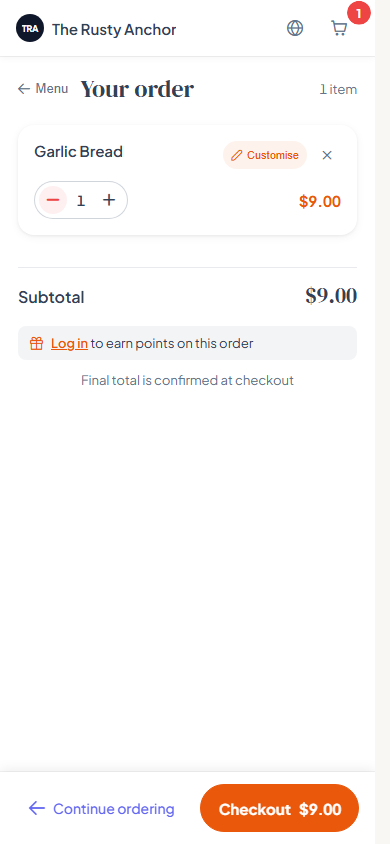
Tapping the cart opens Your order. Diners can edit or remove any line, see a Subtotal, and read a note that the final total is confirmed at checkout. They tap Checkout to carry on.
Who's ordering
Before paying, the diner reaches Checkout, which asks Who's ordering? They can add an email (for their receipt) and a name, then Continue as guest, or Log in to their account to save the order and earn loyalty points. An email is encouraged but never required.
Paying
The diner pays by card right in the page (no redirect), with Secure payment powered by Stripe shown below the card field. They tap Pay with the total, and Tapimo confirms the order. If a discount or loyalty points cover the whole amount, there is nothing to pay and they go straight through.
After paying
The diner sees Order received! with their order number. The screen shows what they ordered and the totals, and what happens next:
- Table service: "Your order's gone through to the kitchen. It'll be ready soon."
- Counter collection: they are told to listen for, or wait to be notified about, their order being ready to collect.
They can also have their receipt emailed, and guests are offered a free account to save their order history.