Set your theme and preview it
Set your colours and fonts, then preview the menu exactly as a diner sees it.
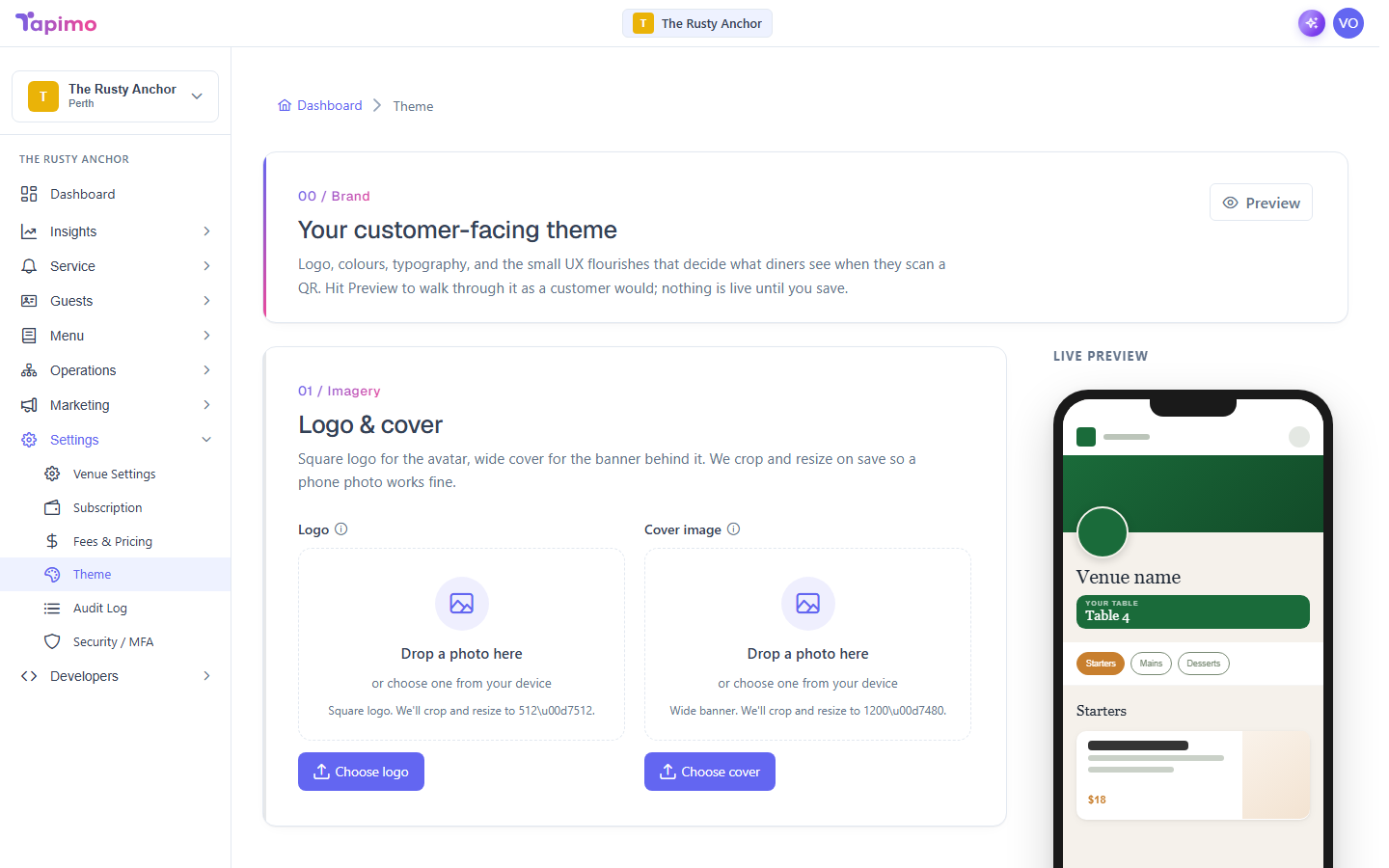
The theme editor controls how your ordering page looks: a starting preset, your fonts, your colour palette, and the style of the category bar. Nothing goes live until you save, and you can preview the whole thing first.
Theming is part of plans that include branded ordering. If you see Custom branding isn't included in your plan, upgrade to unlock it. Your saved theme returns automatically when you do.
This needs the Manage Venue Theme permission. Venue owners have it automatically.
Steps
- Go to Settings -> Theme.
- Under Industry preset, pick a starting point that suits your venue (Cafe, Restaurant, Arcade, Bar, Hotel, or Custom to start from scratch).
- In Typography, choose a Title font and a Body font.
- In Palette, set your colours: Background, Primary, Secondary, Accent and Text. Pick a text colour with strong contrast against the background so the menu stays easy to read.
- Under Menu category navigation, choose how the category bar looks (Pills, Tabs, Segmented or Buttons). The preview updates as you switch.
- Click Preview to check it. Choose Open in new window to walk through it on this screen, or Show QR code to scan it on your phone.
- When you are happy, click Save changes.
How to know it worked
After saving, the live preview matches your choices, and diners see the new theme the next time they open your menu.
The preview runs in a safe mode. It never charges a card or creates an order, so you can walk the whole flow.
Troubleshooting
Want to start over Click Reset to defaults under the palette to return the colours to Tapimo's defaults.