Take and manage your orders
Read incoming orders and move each one through to completed.
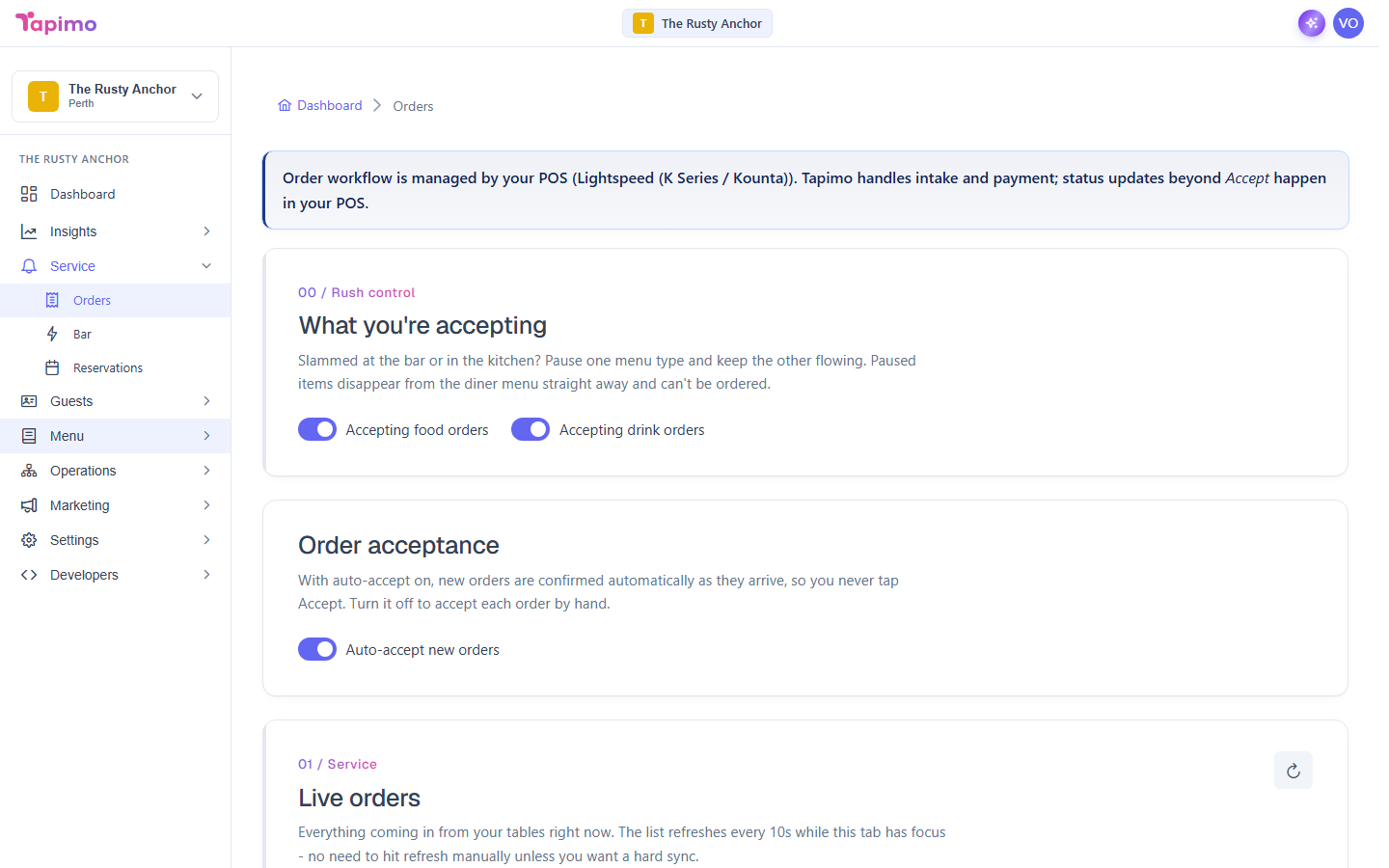
The Orders screen is where new orders land. Each ticket shows the table, the items, and where the order is up to. You advance it one step at a time as the kitchen works through it.
Viewing orders needs the View Orders permission. Advancing and cancelling need Manage Order Status and Cancel Orders. Venue owners have all three.
Accepting orders: automatic or by hand
By default, new orders are accepted automatically the moment they come in, so they arrive ready to prepare and you never tap Accept. This is the Auto-accept new orders switch on the Orders screen, on for every venue to start with.
Turn it off if you would rather confirm each order yourself. With it off, a new order arrives as pending and you tap Accept first.
To change it, go to Service -> Orders and flip Auto-accept new orders. Changing it needs the Manage Venue Settings permission (venue owners have it).
Work an order
- Go to Service -> Orders.
- If auto-accept is off, click Accept on the new order. With auto-accept on, the order is already accepted, so skip straight to the next step.
- Advance it as you go: Start prep, then Mark ready, then Mark served, then Complete.
Each button moves the order to the next stage so your team and the diner know where things are at.
Cancel an order
- On the order, click Cancel.
- Enter a reason in the box. It is kept for your records.
- Click Cancel order.
Cancelled orders stay in your history.
Reprint a docket
If a docket jams or runs out of paper, open the order and click Reprint dockets to print fresh copies. This needs docket printing set up. See Set up docket printing.
How to know it worked
The order moves to its new status on screen as you advance it, and counter-mode tables get a "your order is ready" notification when you mark the order ready.
Troubleshooting
I only see Accept, not the later buttons Your POS is connected, so it owns the kitchen workflow. Tapimo handles taking the order and the payment; the rest happens in your POS. A note on the Orders screen explains this.
Order status does not mean it is paid Order status and payment status are separate. Accepting an order does not mean it has been paid.