Set up docket printing
Tapimo can print order dockets straight to your bar, kitchen, or any other station - automatically, the moment an order comes in. This guide walks you through it end to end.
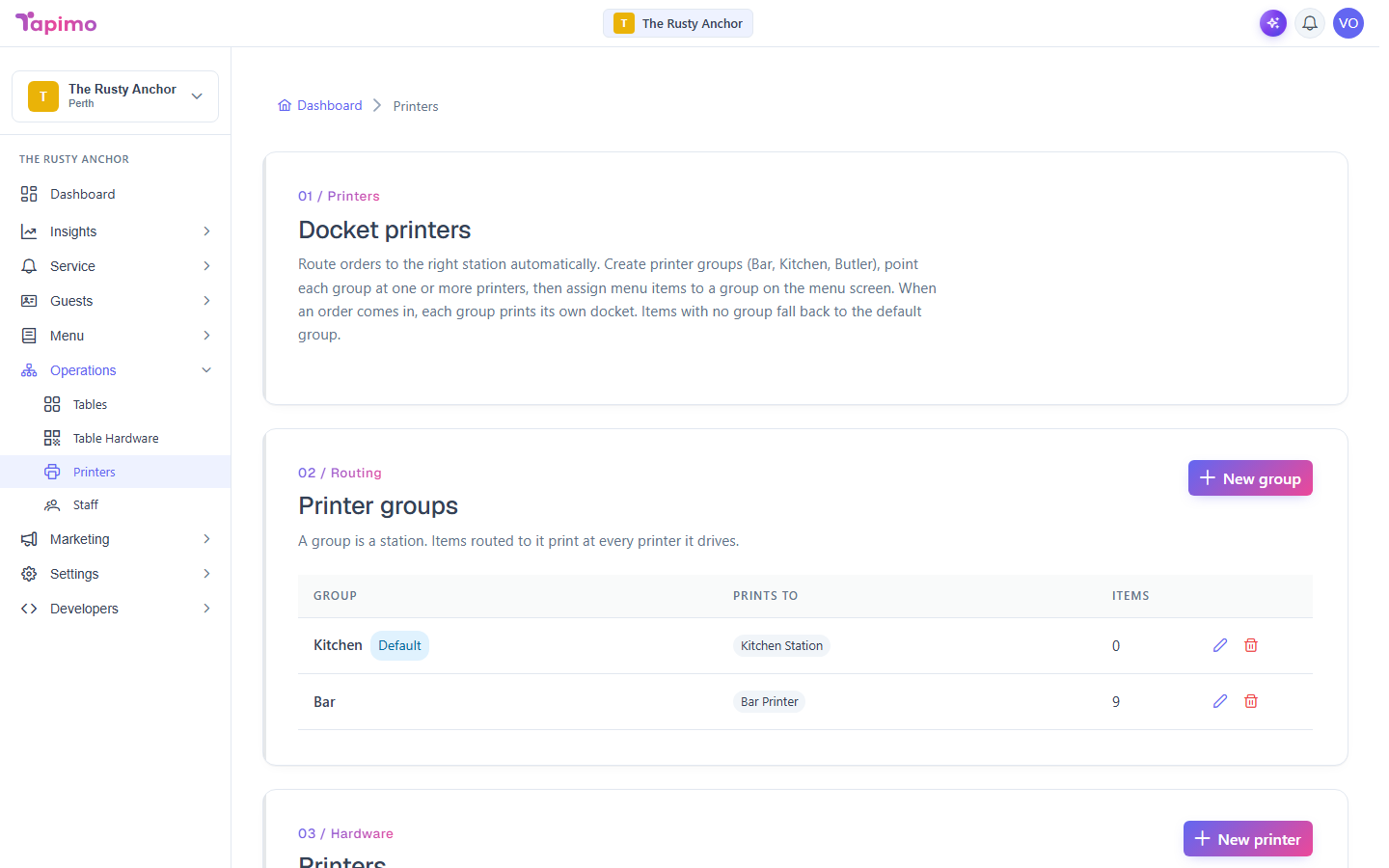
It uses printer groups: you create stations (Bar, Kitchen, Butler...), point each one at one or more physical printers, and assign your menu items to a group. When an order arrives, each group prints its own docket with just its items.
Docket printing is available on Pro plans. You'll need the Manage Printers permission (venue owners have it automatically). If you don't see Printers under Operations in the sidebar, your plan or role doesn't include it yet.
Before you start: choose your printer
Tapimo prints over the internet using the pull model - the printer asks Tapimo for jobs, so there's no PC or local software to install. For this to work your printer must be one of:
- A Star CloudPRNT printer (for example TSP100IV, TSP654II with CloudPRNT, or an mC-Print), or
- An Epson printer with Server Direct Print.
These connect to your venue Wi-Fi (which needs internet) and poll Tapimo for dockets. This is the recommended option - no extra hardware, no monthly fee.
A generic USB or Wi-Fi receipt printer that can't poll a URL needs the PrintNode transport instead, which requires an always-on PC/Mac on site running the PrintNode client plus a paid PrintNode account. The app will warn you when you pick it. For most venues, a CloudPRNT/Epson printer is simpler and cheaper - reach for PrintNode only if you already have incompatible hardware.
Step 1 - Open the Printers screen
In the management app, go to Operations -> Printers. You'll see three sections: an overview, Printer groups, and Printers.
Step 2 - Create your printer groups
A group is a station. Think about where dockets need to go - most venues start with a Kitchen and a Bar.
- Under Printer groups, click New group.
- Name it (e.g.
Kitchen). - The first group you create is automatically the default group - the catch-all for any item you don't explicitly route somewhere else. Leave Kitchen as the default.
- Click Save, then repeat for
Bar(and any others likeGrillorButler).
Every venue has exactly one default group. Items with no specific assignment print there, so it can never be deleted - make another group the default first if you need to remove it.
Step 3 - Add your printers
- Under Printers, click New printer.
- Give it a clear name (e.g.
Bar Printer). - Leave Transport on Star CloudPRNT / Epson (recommended).
- Pick the paper width that matches your hardware (80mm is most common; 58mm for narrow rolls).
- Under In groups, choose which station(s) this printer serves - e.g. the Bar Printer belongs to the Bar group. (A printer can serve more than one group, and a group can drive more than one printer.)
- Click Save.
Step 4 - Connect the physical printer
- In the Printers list, click Setup on the printer you just added.
- Copy the Server URL shown in the dialog.
- In your printer's own settings (via its web interface or the manufacturer's utility), find the CloudPRNT (Star) or Server Direct Print (Epson) setting and paste the URL in. Make sure the printer is on Wi-Fi with internet access.
- Save the printer's settings. Within a few seconds it will start polling Tapimo - the Printers list shows a "polled just now" hint once it does.
The Server URL is a secret key for that printer - anyone with it can read its queued dockets. If it ever leaks, click Rotate token in the Setup dialog and re-paste the new URL into the printer.
Step 5 - Route your menu items
Now tell Tapimo which station each item prints at.
- Go to Menu -> Menu Editor.
- Open an item and find the Printer group field (on the item's basic details). Pick the station - e.g. set drinks to Bar.
- Leave food items on Default group so they fall through to the Kitchen.
- Save.
You only need to reassign the items that should go somewhere other than the default. Anything left on the default group prints at your default station.
Combos route by their individual items, not the bundle - each component prints at its own station automatically.
Step 6 - Send a test print
- Back on Printers, click the test print (printer icon) button on a printer.
- The printer should produce a short "TAPIMO TEST PRINT" docket within a few seconds, confirming it's connected and configured correctly.
If nothing prints, see Troubleshooting below.
You're done
From now on, every order automatically prints a docket at each station that has matching items - drinks to the Bar, food to the Kitchen - with the customer's modifications and notes included.
Reprinting an order
If a docket jams or runs out of paper, you can reprint. Open the order from Orders, then click Reprint dockets in the order panel. This always produces fresh copies.
Troubleshooting
Nothing prints / the test print never appears
- Check the printer is on Wi-Fi and can reach the internet.
- Confirm the Server URL is pasted exactly into the printer's CloudPRNT / Server Direct Print setting.
- Make sure the printer is set to Active in Tapimo.
- On the Printers list, check the "polled" hint - if it says "never polled", the device isn't reaching Tapimo yet (usually a network or URL issue).
Orders print, but a connected POS already prints them too
- If your venue has a POS connected, the POS owns kitchen/bar printing and Tapimo does not auto-print (to avoid double dockets). Tapimo auto-printing applies to standalone venues only.
An item prints at the wrong station
- Check the item's Printer group in the Menu Editor. Unassigned items go to the default group.
A group's docket never prints
- Make sure the group has at least one active printer assigned to it.
Related guides
Want more detail on one step?