Arrange your floor plan
Lay out your tables on screen to match your actual room.
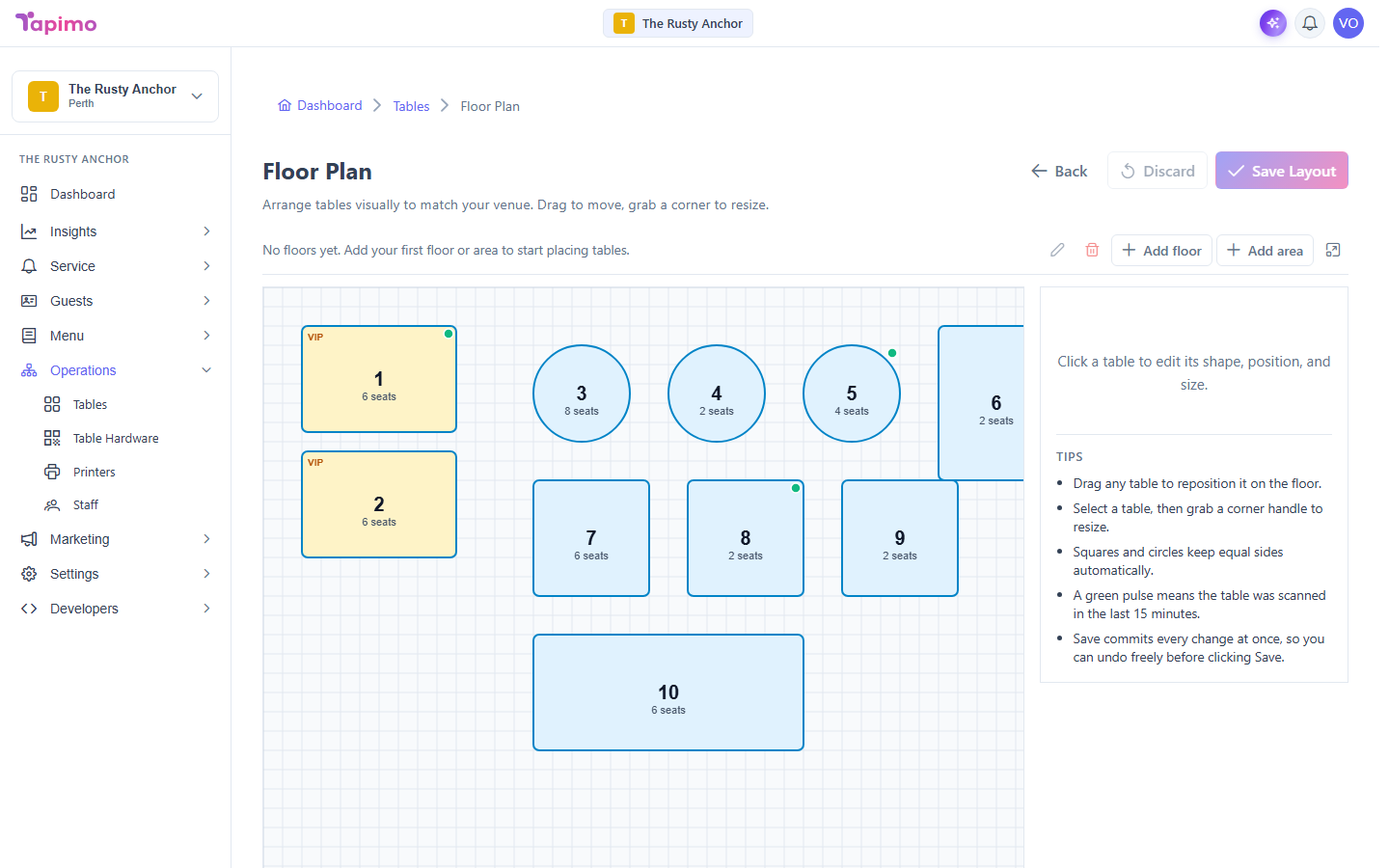
The floor plan is a visual map of your venue. Arranging it makes the live floor view easy to read at a glance during service, and lets you group tables into floors and areas.
Who can do this
This needs the Manage Tables permission. Venue owners have it automatically.
Open the floor plan
- Go to Operations -> Tables.
- Open the Floor Plan view.
Arrange your tables
- Move a table: drag it where you want it.
- Resize a table: select it, then drag a corner handle. Squares and circles keep an even shape.
- Add walls and doors: use Add wall and Add door to sketch the room so the layout is easy to read. Select a shape and use Delete shape to remove it.
When you are happy, click Save Layout. To throw away your changes, click Discard.
Add floors and areas
If your venue has more than one level or a separate zone:
- Click Add floor for a stacked level (for example,
Ground floor,Rooftop). - Click Add area for a named zone (for example,
Beer garden,Function room).
When you create a floor or area, the Holds option chooses whether its spots are Tables or Rooms, so a hotel can have guest-room floors plus a restaurant area in the same venue.
How to know it worked
Your tables sit where you placed them, and the Save Layout button greys out once there are no unsaved changes.