Connect your POS
Connect your point-of-sale so paid orders flow straight to it, with no re-keying.
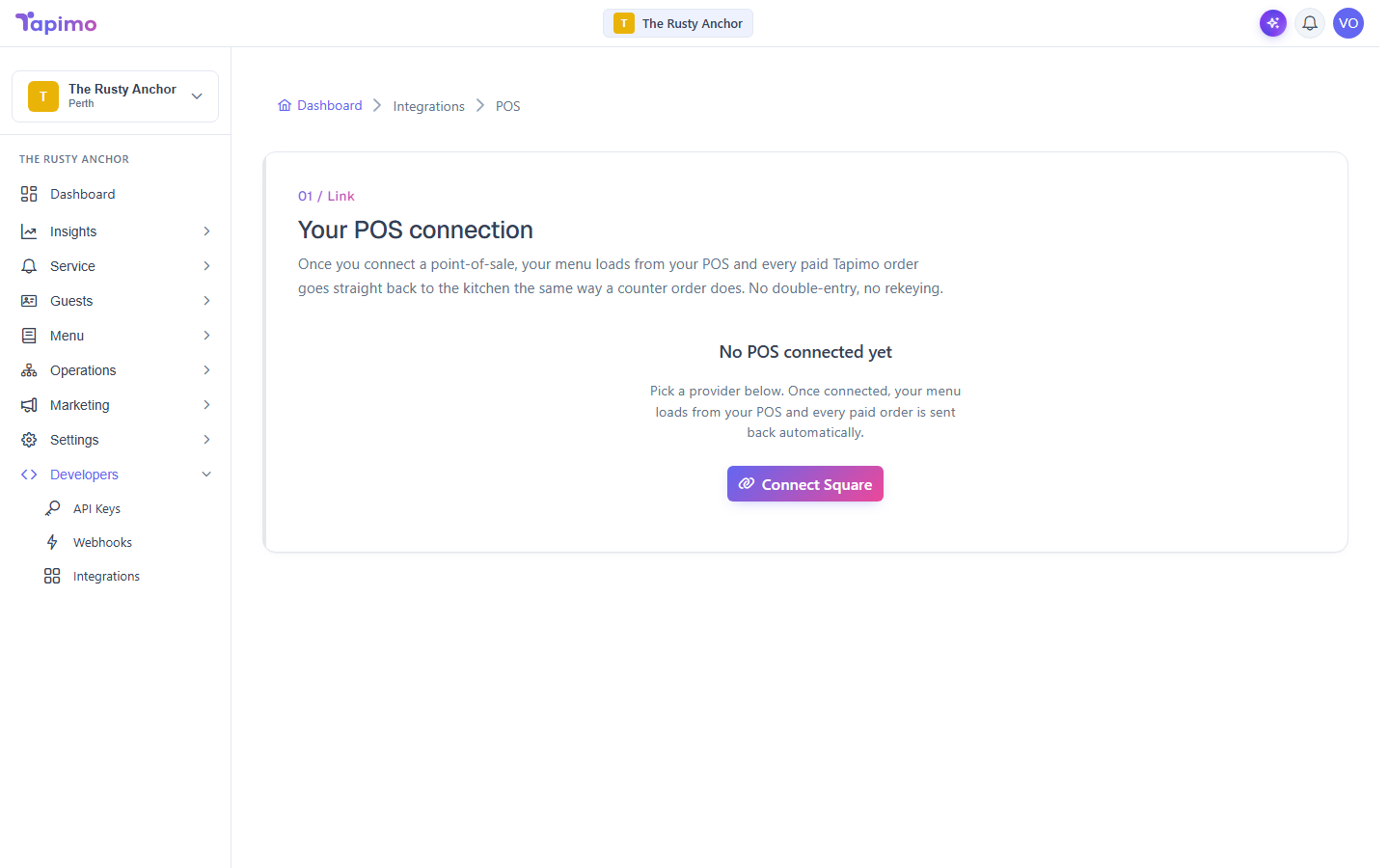
If you run a POS, you can connect it to Tapimo. Once connected, your menu loads from your POS and every paid Tapimo order is sent back to it automatically, the same way a counter order would be. You only need this if you already use a POS; plenty of venues run Tapimo on its own.
This needs the Manage Venue Integrations permission. Venue owners have it automatically.
Connect Square
- Go to Developers -> Integrations.
- Open the POS connection page and click Connect Square.
- A Square sign-in window opens. Approve the connection.
- The window closes and Tapimo shows Connected.
Connect a different POS
Tapimo also works with Lightspeed and POS systems routed through Doshii (OrderMate, Impos, SwiftPOS, Bepoz). These are set up with the Tapimo team rather than self-serve. Contact us at [email protected] and we will get you connected.
What changes once a POS is connected
Your POS takes over the kitchen workflow. Tapimo still handles taking the order and the payment, but advancing an order past Accept (preparing, ready, served) happens in your POS, which prints its own dockets. The Orders screen shows a note explaining this.
Keep your menu in sync
On the POS connection page, click Sync menu now to pull your latest categories and items from your POS.
How to know it worked
The page shows a green Connected badge with your merchant name, and new paid orders appear in the Recent order pushes list.
Troubleshooting
The Square window did not open Your browser blocked the popup. Allow popups for Tapimo and click Connect Square again.
I need to stop forwarding orders Click Disconnect. Your history is kept, and you can reconnect any time.