Create a printer group (station)
Set up a station, like Bar or Kitchen, that order dockets route to.
A printer group is a station. You point it at one or more printers, then route menu items to it. When an order comes in, each group prints its own docket with just its items. This is part of the full Set up docket printing walkthrough.
This needs the Manage Printers permission, and your plan must include docket printing. If you do not see Printers under Operations, your plan or role does not include it yet.
Create a group
- Go to Operations -> Printers.
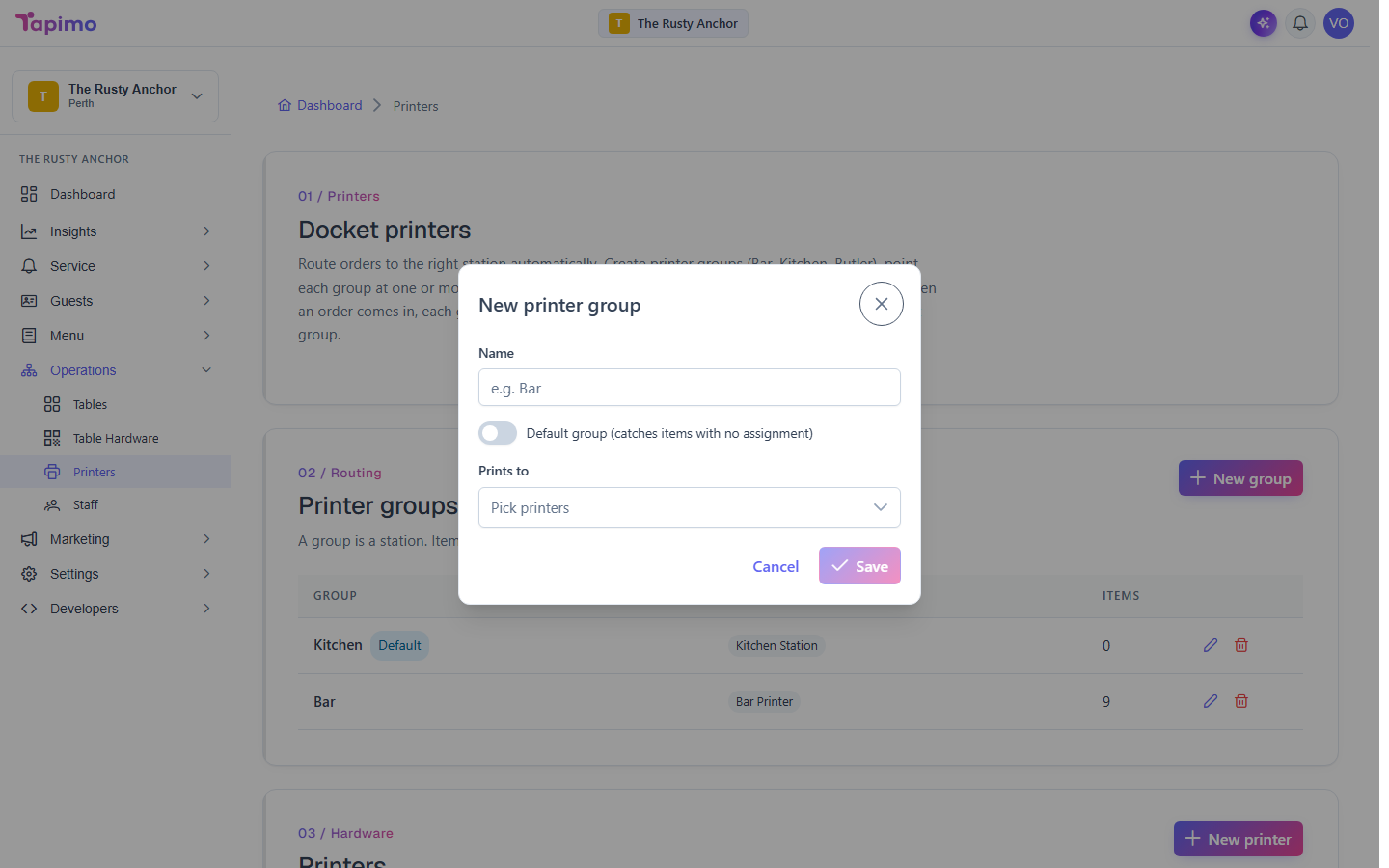
- Under printer groups, click New group.
- Enter a Name (for example,
Kitchen). - Under Prints to, pick the printers this station should drive. You can add printers later if you have not set them up yet.
- Click Save.
Repeat for each station, such as Bar or Grill.
The default group
One group is always the default. It is the catch-all that prints any item you have not routed somewhere specific. To make a group the default, turn on Default group (catches items with no assignment) in its dialog.
How to know it worked
Your group appears in the list with the printers it prints to, and the default group is tagged Default.
Troubleshooting
A group will not delete You can delete a group, but its items fall back to the default group. The default group itself cannot be deleted. Make another group the default first if you need to remove the current one.