Add your tables
Create your tables. Each one gets its own QR code automatically.
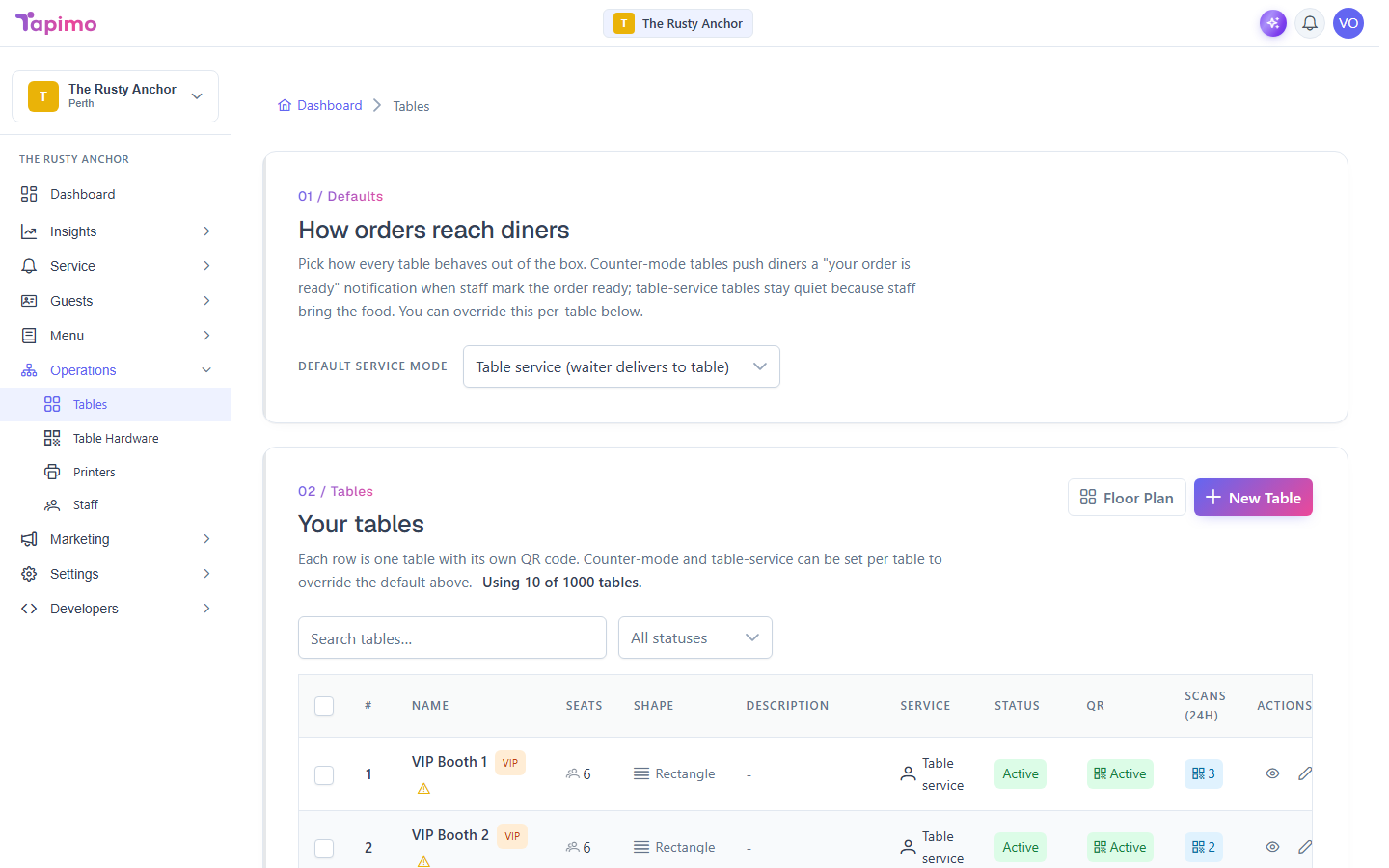
A table is a spot a diner orders from. You give it a number and a few details, and Tapimo generates a unique QR code for it.
This needs the Manage Tables permission. Venue owners have it automatically. You also need a usable subscription.
Steps
- Go to Operations -> Tables.
- Click New Table.
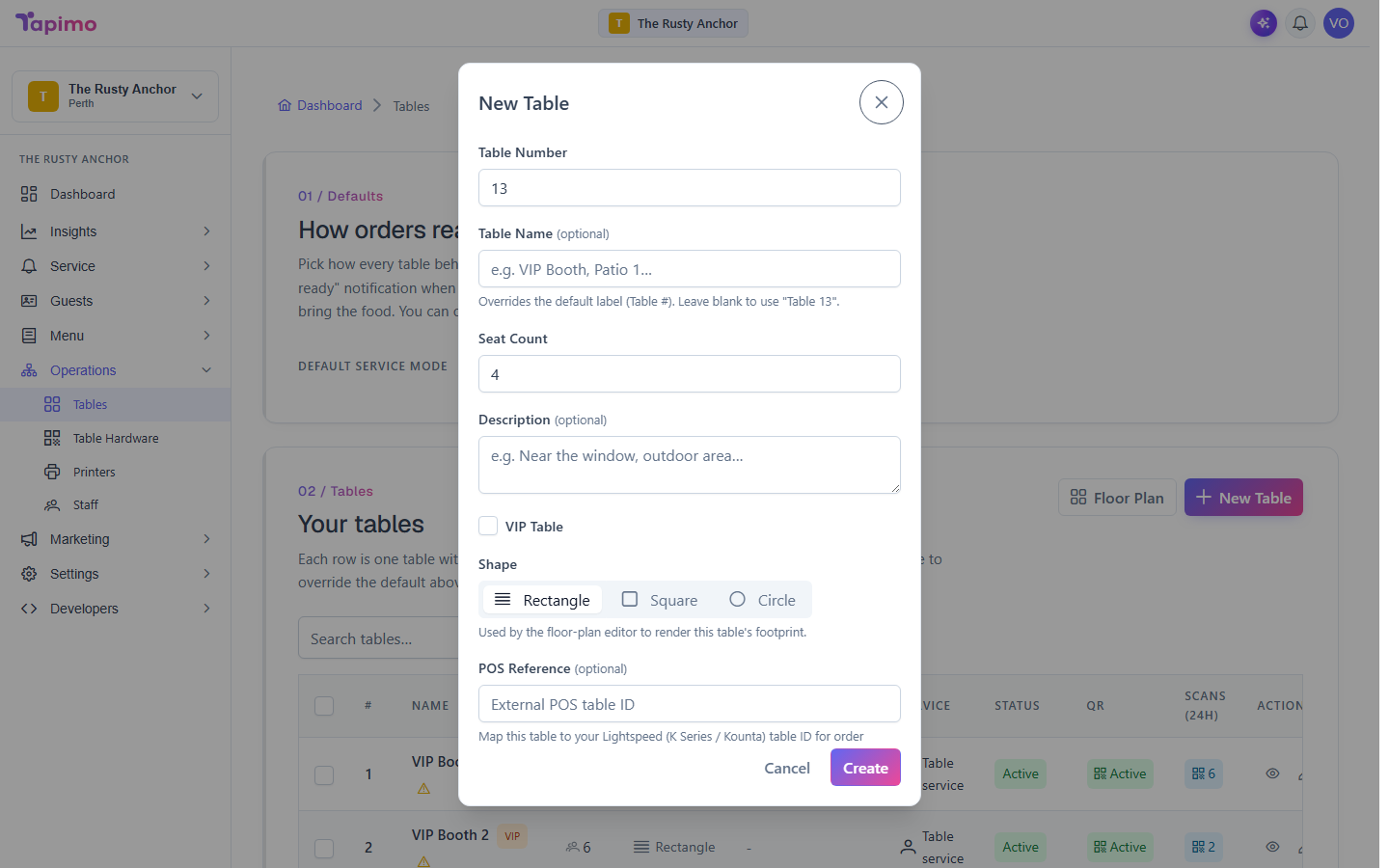
- Fill in the details:
- Table Number: Tapimo suggests the next free number, or set your own.
- Table Name (optional): a friendly label like
Window 2. Leave it blank to use "Table [number]". - Seat Count: how many people the table seats.
- Description (optional): a note like
near the bar. - VIP: tick to flag it as a VIP table.
- Shape: Rectangle, Square or Circle, used when you lay out your floor plan.
- Click Create.
Repeat for each table.
How to know it worked
The table appears in your list with an Active QR status. Open it to see its QR code.
Troubleshooting
The New Table button is greyed out You have hit your plan's table limit, or your subscription is not active. The banner at the top shows how many tables you are using out of your limit. Upgrade your plan to add more.
I have more than one floor or area Pick a Floor or area for the table in the dialog, or arrange everything visually later. See Arrange your floor plan.