Add your first menu item
Create a menu item with its name, type, category and price.
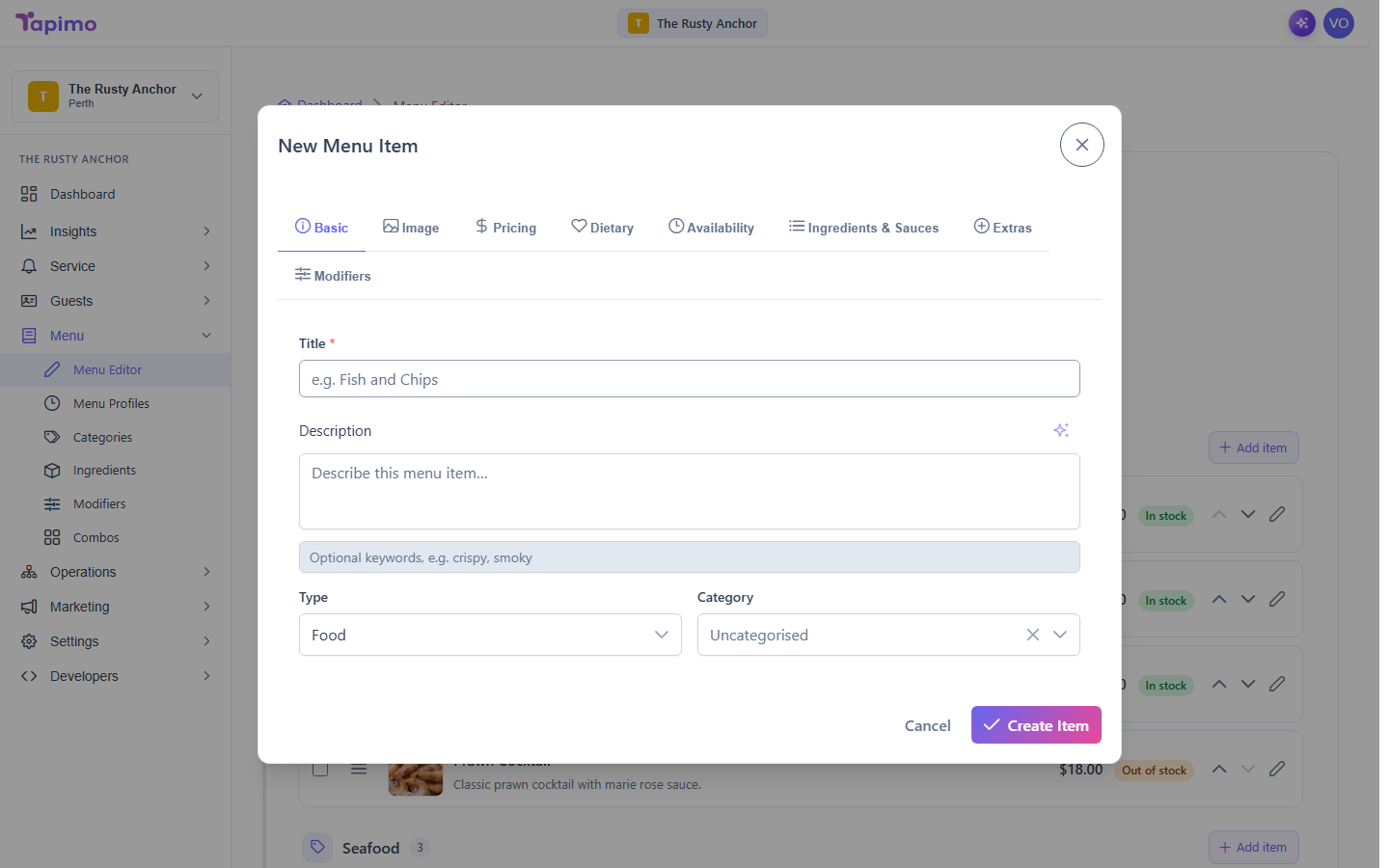
A menu item is one thing a diner can order. This guide covers the essentials to get an item on the menu. Photos, dietary badges, availability and choices each have their own guide once your item exists.
Who can do this
This needs the Manage Menu Items permission. Venue owners have it automatically.
Steps
- Go to Menu -> Menu Editor.
- Click New menu item. A dialog opens with tabs across the top.
- On the Basic tab:
- Enter a Title (for example,
Fish and Chips). - Add a Description if you want one.
- Set the Type to Food or Beverage.
- Choose a Category, or leave it as Uncategorised.
- Enter a Title (for example,
- Open the Pricing tab and enter the Base Price in dollars and cents. GST is worked out automatically at checkout for GST-registered venues, so just enter the price you want diners to pay.
- Click Create Item.
How to know it worked
The item appears in your Menu Editor list and on the diner menu under its category.
Do more with this item
- Add a photo to a menu item
- Set dietary flags on the item's Dietary tab: tick Gluten Free, Vegetarian, Vegan, or Alcoholic (the 18+ badge). They show next to the item name on the menu.
- Set an item out of stock or on a schedule
- Build modifier groups for choices like sauces and cooking preference.