Run different menus through the day
Set up time-based versions of your menu that switch automatically.
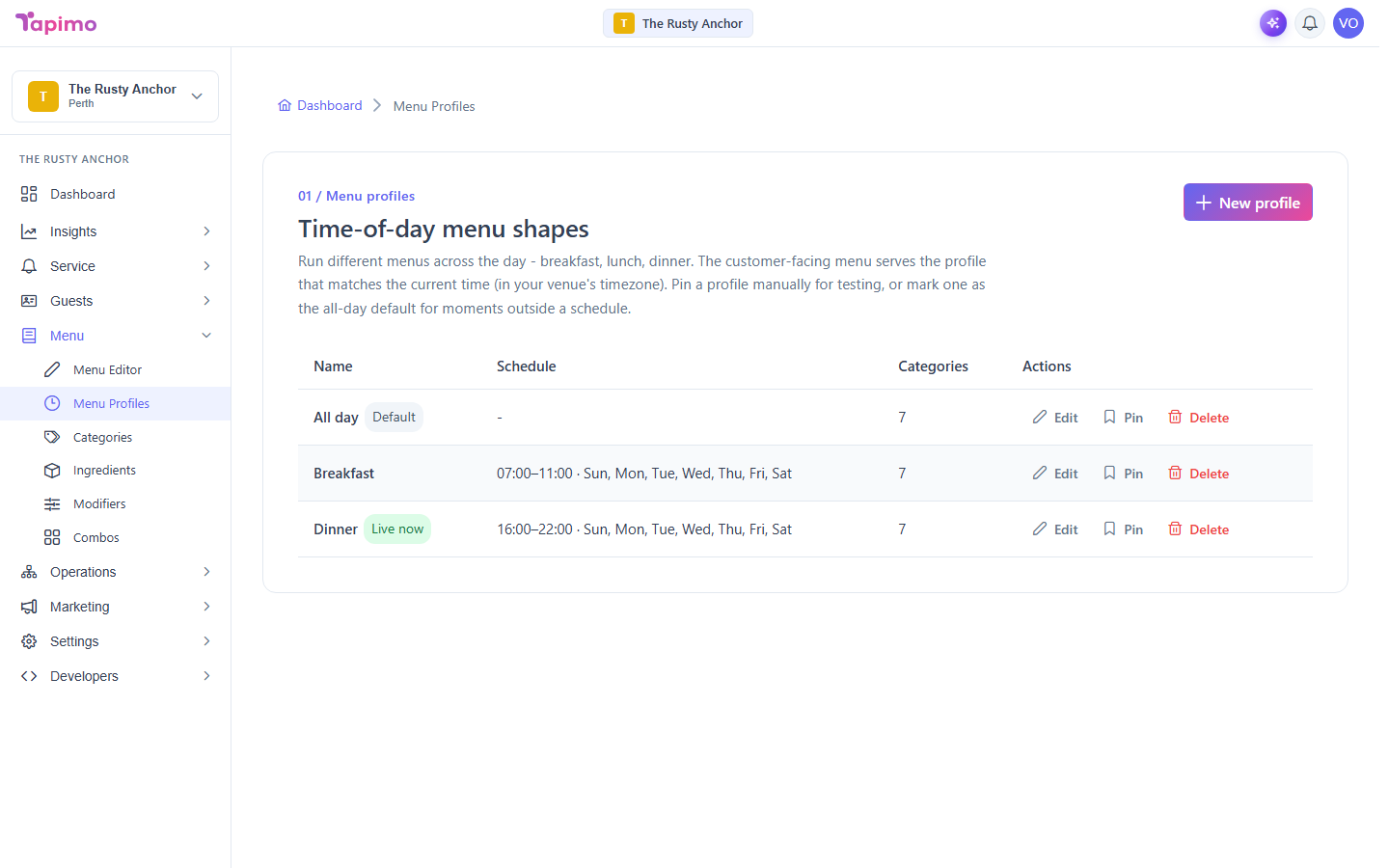
A menu profile is a version of your menu for a part of the day, like breakfast, lunch or dinner. Diners scanning your QR code see the profile that matches the current time in your venue's timezone, with no work from you at service.
Scheduled menus are part of the Growth plan and above. If you do not see Menu Profiles under Menu, your plan does not include it yet.
This needs menu management permission. Venue owners have it automatically.
Create a profile
- Go to Menu -> Menu Profiles.
- Click New profile.
- Give it a Name, like
Breakfast. - Set its schedule:
- Start time and End time: when this profile is live.
- Days: which days it runs. Leave it as Every day to run all week.
- Or tick Default when no schedule matches to make it your all-day fallback, for times no other profile covers.
- Click Create.
Force a profile live for testing
To preview a profile outside its scheduled hours, click Pin on it. Pinning overrides the schedule and serves that profile until you Unpin it. Handy for checking a dinner menu at lunchtime.
How to know it worked
Each profile shows its schedule in the list, and a Pinned or Default label where it applies. During service, the customer-facing menu switches to the matching profile on its own.