Build modifier groups for item choices
Create reusable choice lists, like cooking preference, and attach them to items.
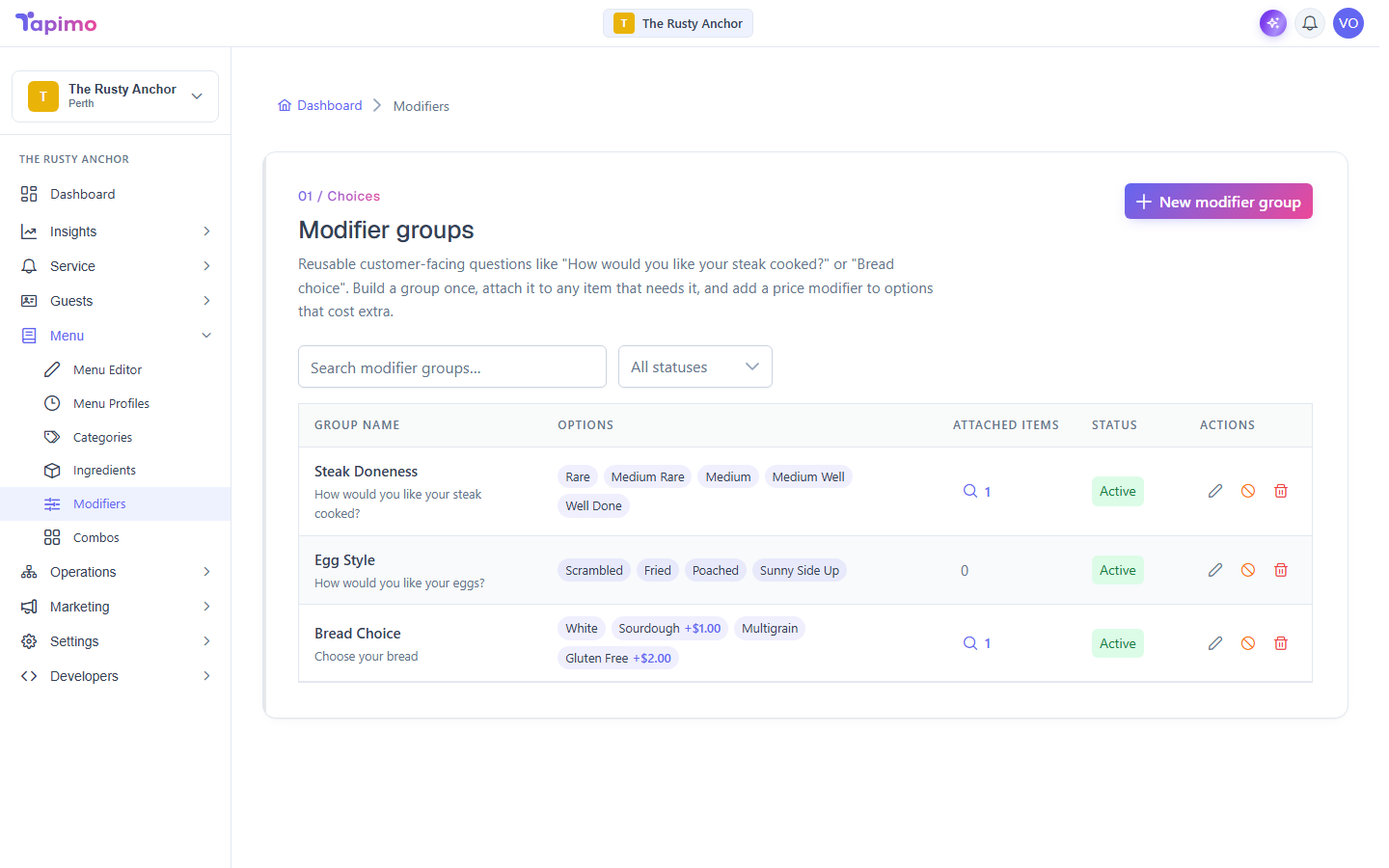
A modifier group is a question the diner answers when ordering: "How would you like your steak cooked?", "Choose your bread". You build the group once, then attach it to any items that need it. Options can add a surcharge or be free.
Who can do this
This needs the Manage Item Modifiers permission. Venue owners have it automatically.
Create a modifier group
- Go to Menu -> Modifiers.
- Click New modifier group.
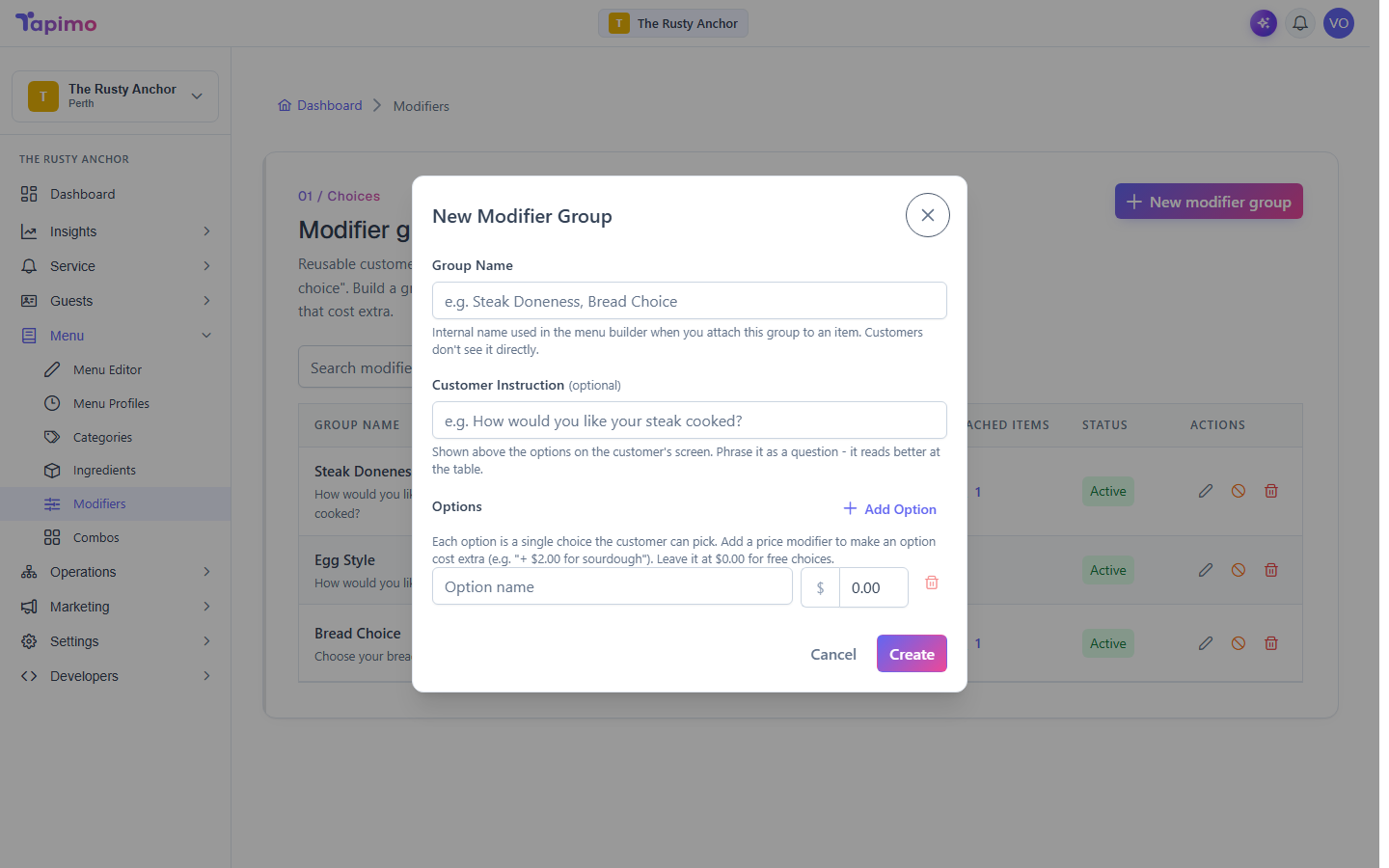
- Enter a Group Name. This is the internal name you will see when attaching
it to items (for example,
Steak Doneness). Diners do not see it directly. - Add a Customer Instruction if you want one. This is the question shown
above the options on the diner's screen (for example,
How would you like your steak cooked?). - Click Add Option for each choice. Give it a name, and a price if it costs
extra (leave it at
0.00for a free choice). - Click Create.
Attach the group to an item
- Go to Menu -> Menu Editor and open an item.
- Open the Modifiers tab.
- In Select a modifier group, pick your group and click Attach.
- Tick Required if the diner must choose. Set a Max number of picks and a Default option if you want one.
- Click Save Changes.
You can attach the same group to as many items as you like, so you only build it once.
How to know it worked
When a diner adds the item, your question and its options appear, and any surcharge is added to the price.
Troubleshooting
A group will not delete A group that is attached to items cannot be deleted. Detach it from those items first.