Set up two-factor authentication
Add a second step at sign-in so a leaked password is not enough to get into your account.
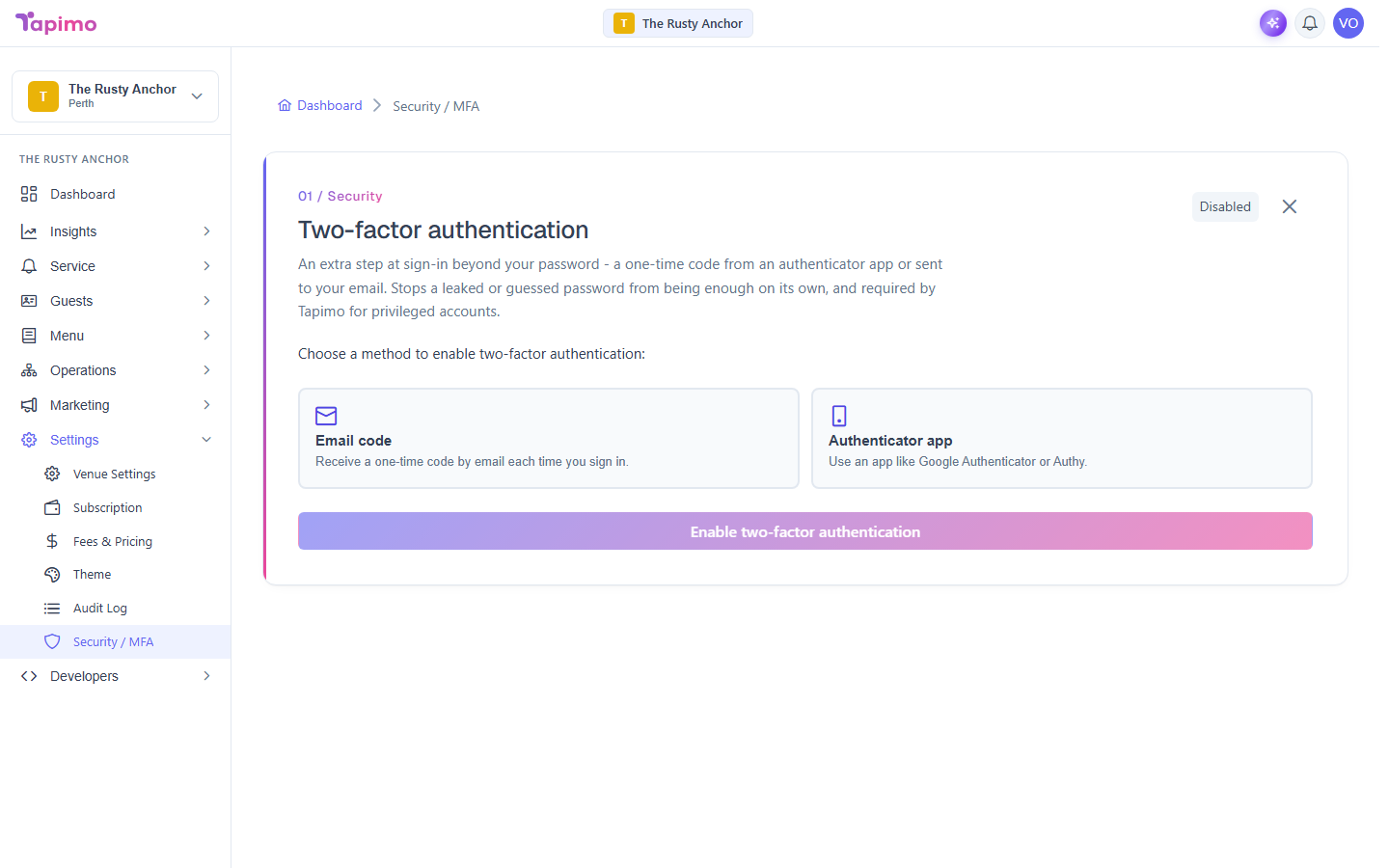
Two-factor authentication (2FA) asks for a one-time code as well as your password when you sign in. Tapimo requires it for privileged accounts, like venue owners and staff with sensitive permissions.
This protects your own login, so anyone with a Tapimo account can set it up. It is on your account, not tied to a single venue.
Turn it on
- Go to Settings -> Security / MFA.
- Choose a method:
- Authenticator app: use an app like Google Authenticator or Authy.
- Email code: receive a one-time code by email each time you sign in.
- Click Enable two-factor authentication.
If you chose an authenticator app, scan the QR code shown with your app, then enter the six-digit code it gives you to confirm. If you chose email, enter the code sent to your inbox.
Save your recovery codes
Right after you turn 2FA on, Tapimo shows a set of recovery codes once. Save them somewhere safe, like a password manager. They let you back into your account if you ever lose your phone or cannot get a code. Tick I have saved my recovery codes to finish.
How to know it worked
The screen shows Enabled at the top, and the next time you sign in Tapimo asks for a code after your password.
Turn it off
- Go to Settings -> Security / MFA.
- Enter your current password and a valid verification code or recovery code.
- Click Disable two-factor authentication.