Invite staff and set their permissions
Add someone to your team and pick exactly what they are allowed to do.
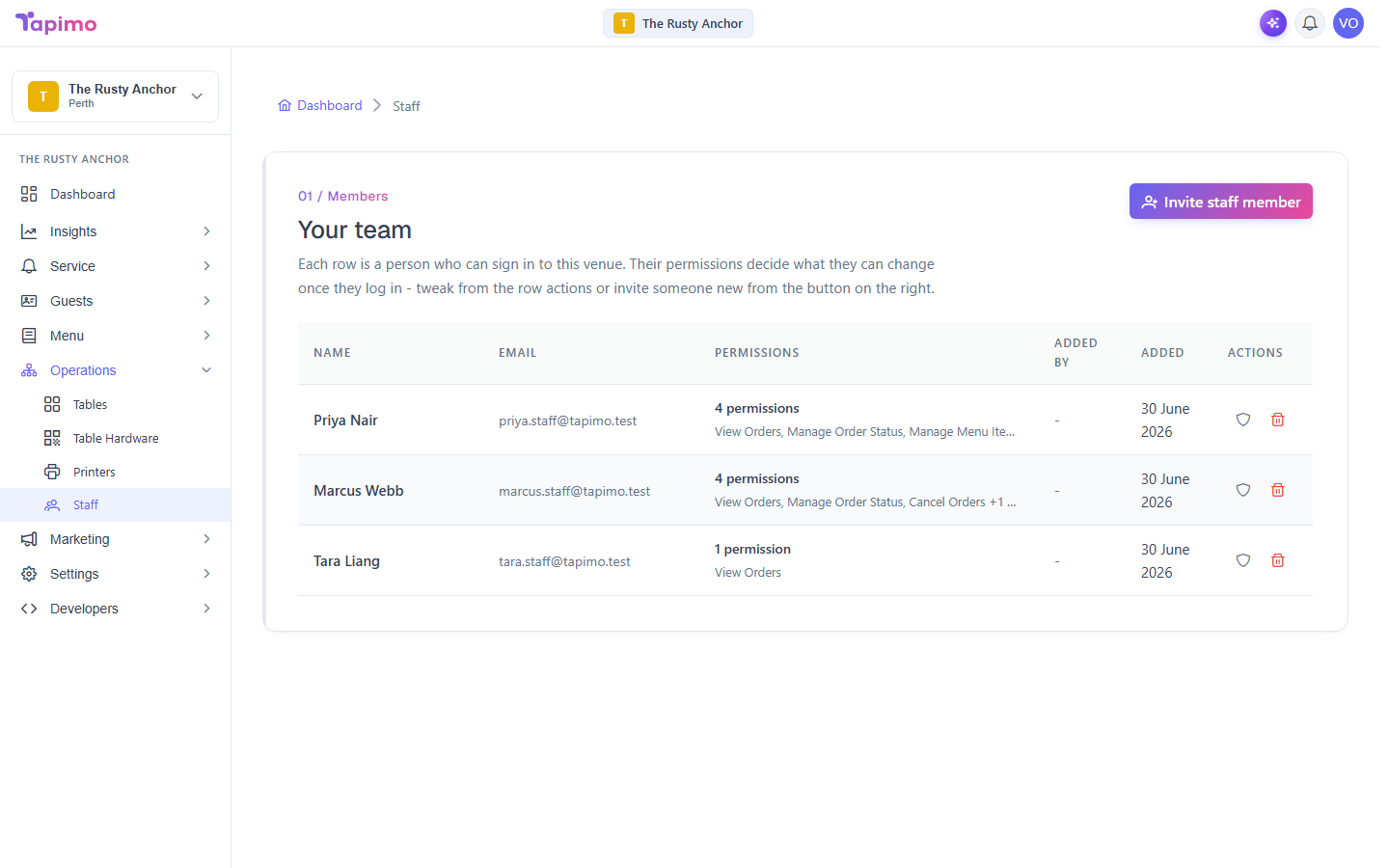
You invite staff by email. Each person gets their own login, and you choose which parts of the venue they can use, from taking orders to managing the menu. You can change their permissions any time.
This needs the Manage Staff permission. Venue owners have it automatically.
Invite someone
- Go to Operations -> Staff.
- Click Invite staff member.
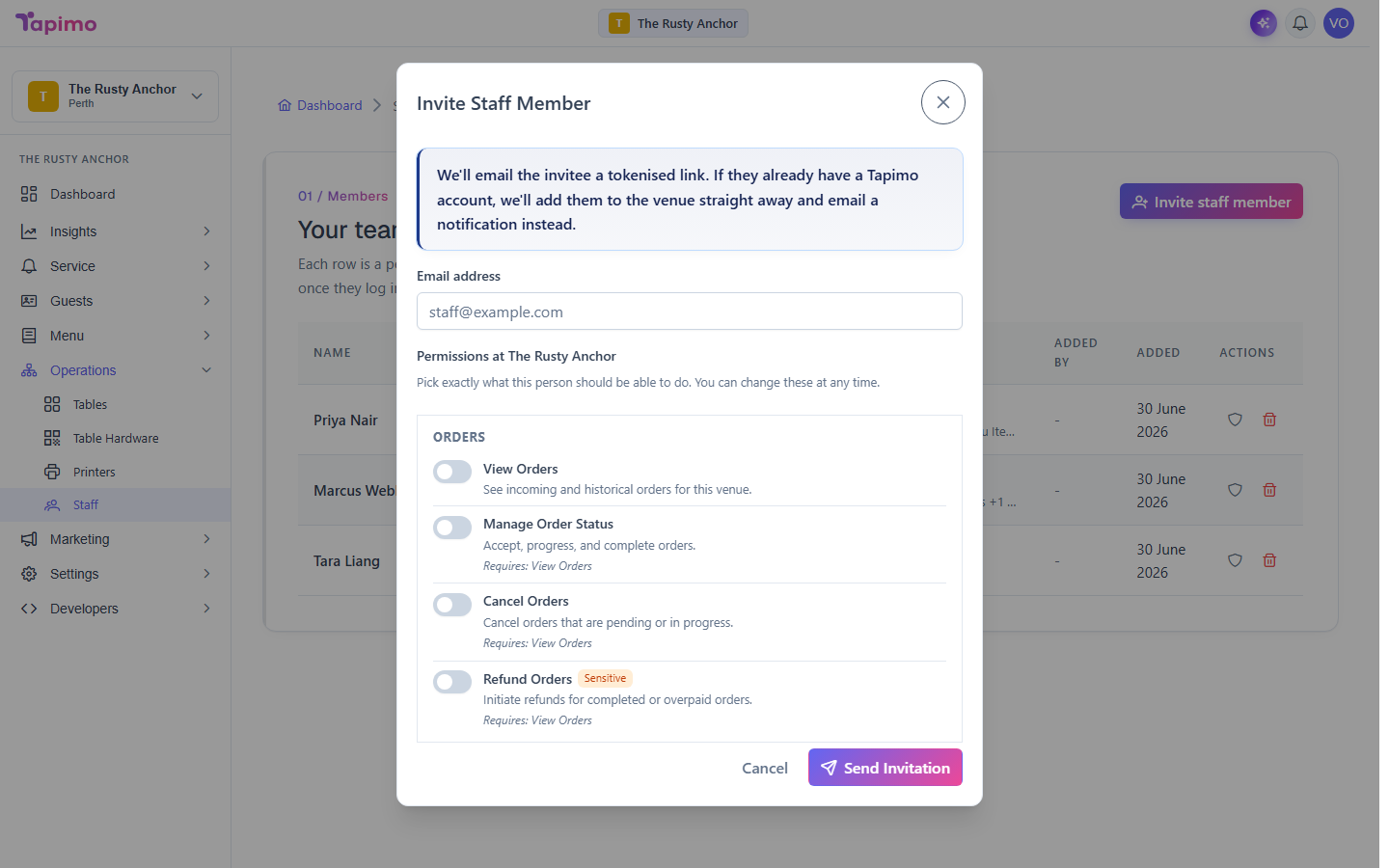
- Enter their Email address.
- Turn on the permissions they need. Each one has a short description of what it lets them do. Some permissions switch on others they depend on automatically.
- Click Send Invitation.
We email them a link to join. If they already have a Tapimo account, we add them to your venue straight away and email them a heads-up instead.
How to know it worked
The person appears in your staff list (or in the pending invitations list until they accept). You will see "[email] will receive an email to join the venue."
Change someone's permissions later
On Operations -> Staff, find the person and click the Edit permissions (shield) button on their row. Adjust the toggles and click Save Permissions.
Troubleshooting
They did not get the email On their row in the pending invitations list, click Resend invitation to send a fresh link.
I invited the wrong person Click Revoke invitation on their row. The link stops working.
Someone has left On their row in the staff list, click Remove from venue.