Change or cancel your subscription
Switch to a different plan, or cancel your subscription, from one screen.
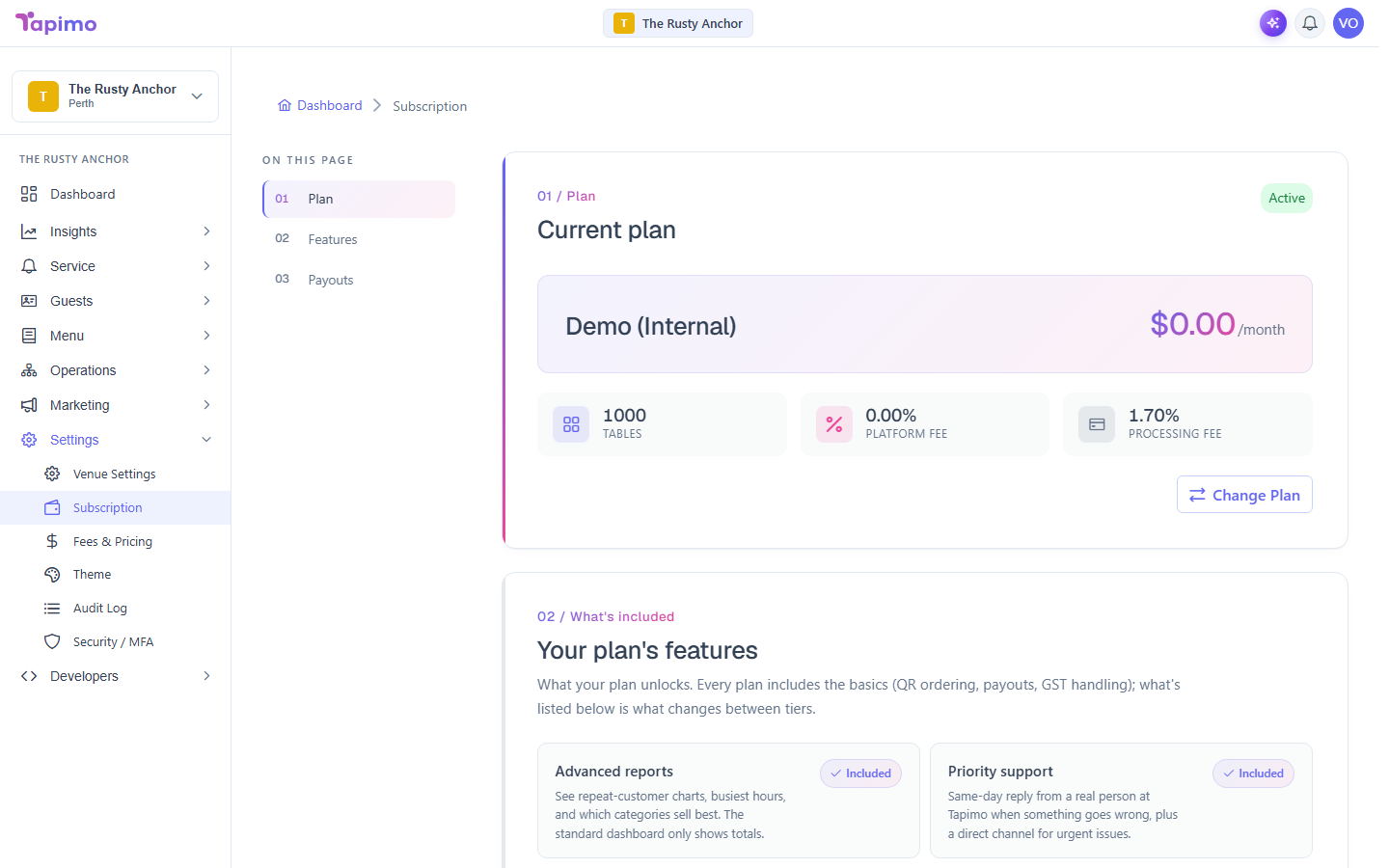
Your subscription decides which features your venue has and how many tables you can run. You can move up or down a plan at any time, and cancel or resume from here too.
Who can do this
This is for venue owners. Staff cannot change billing.
Change your plan
- Go to Settings -> Subscription.
- Your Current plan is shown at the top.
- Click Change Plan.
- Pick the plan you want. Some plans offer a free trial, shown on the plan card.
- Confirm the change.
Your features and table limit update to match the new plan.
Cancel your subscription
- Go to Settings -> Subscription.
- Click Cancel subscription.
- Confirm.
Your subscription stays active until the end of the period you have already paid for. After that date it ends, and your venue stops accepting online orders. Your data is not deleted.
Resume a subscription you cancelled
If you cancelled but the end date has not passed yet, you can undo it.
- Go to Settings -> Subscription. A Cancelling label shows near your plan.
- Click Resume subscription.
Your subscription continues as normal, and you are billed as usual.