Read your dashboard
Understand your dashboard at a glance, and arrange it to suit how you work.
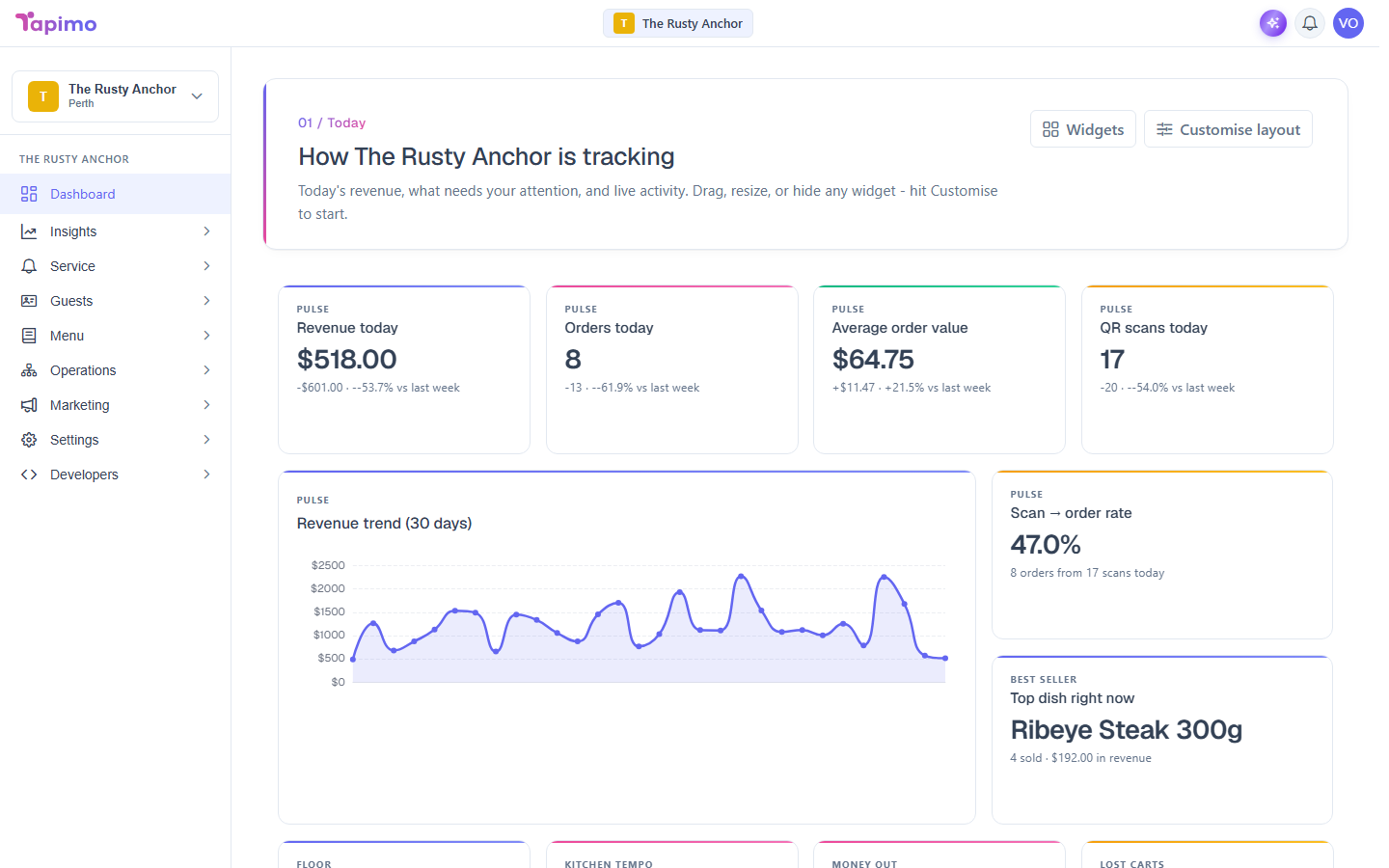
Your dashboard is the first thing you see after signing in. It shows how the venue is tracking today, what needs your attention, and live activity, all as widgets you can rearrange.
What it shows
Go to your venue's Dashboard. The widgets fall into three groups:
- Today (pulse): today's revenue, orders, average order value, QR scans, and your scan-to-order rate, each compared to the same day last week.
- Operations: live tables, order timing, refunds, abandoned carts, new versus returning diners, POS sync health, loyalty, and your top dish right now.
- Lists: a Needs attention action queue, your Top customers, and a Live activity feed of the last 15 minutes.
A Finish setting up your venue card also shows here until your setup is complete.
Arrange your widgets
- Click Customise layout.
- Drag a widget to move it, or grab an edge to resize it.
- Click Done when you are happy. Your layout is saved for you.
To add or hide widgets, click Widgets and pick what you want to see. To start over, click Reset while customising (this brings back any hidden widgets).
How to know it worked
Your changes stick: the next time you open the dashboard, it is laid out the way you left it.
Troubleshooting
A widget says I do not have permission Some widgets need a specific permission (for example, Top customers needs View Customers). Ask the venue owner to grant it on your staff role.