Track and turn off discount codes
See how a code is performing and switch it off when you are done.
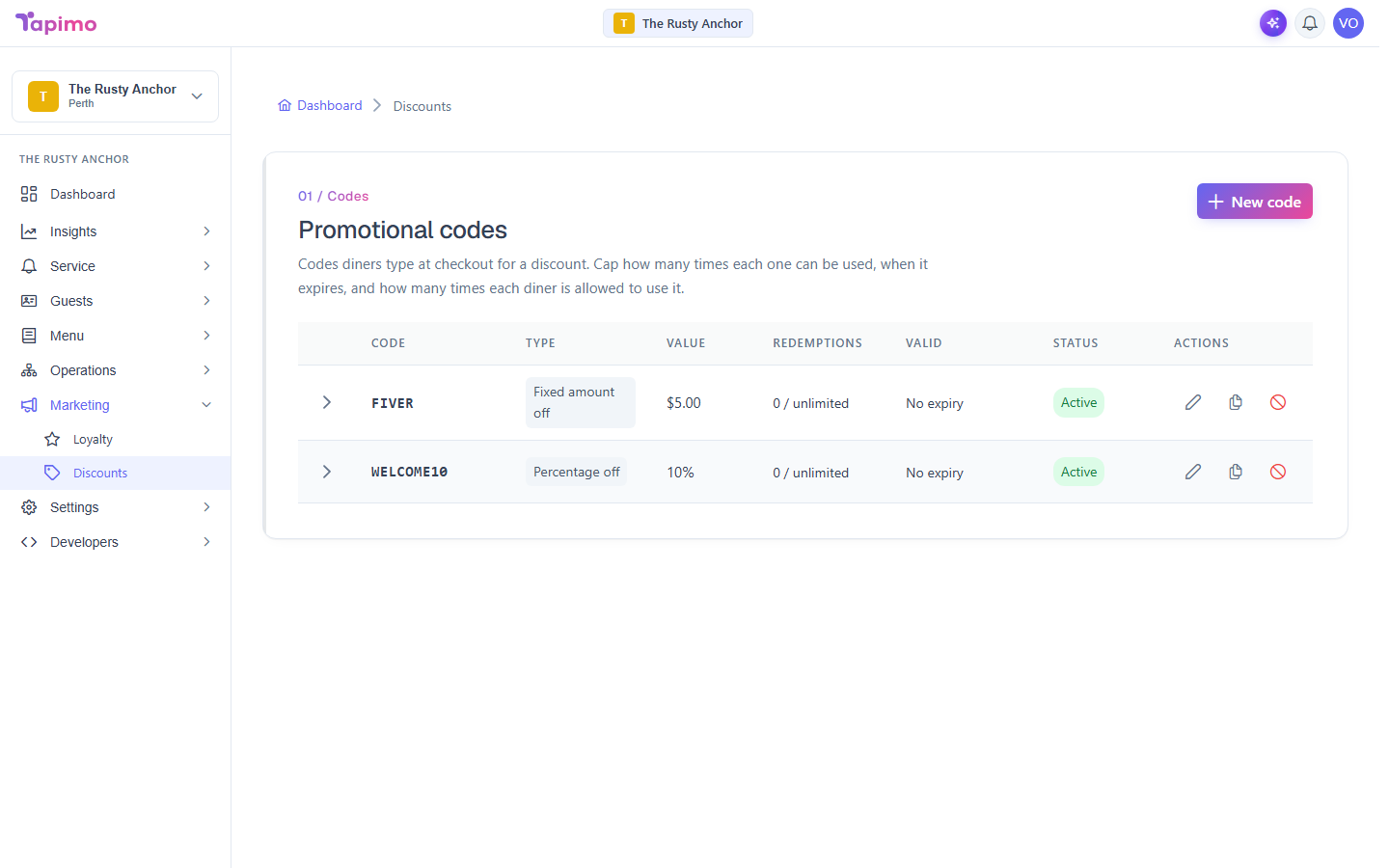
Your discount list shows each code's status and how often it has been used. You can open a code for detail, or deactivate one without losing its history.
This needs the Manage Discount Codes permission. Venue owners have it automatically.
Read a code's status
Go to Marketing -> Discounts. The Status column shows where each code is up to:
- Active: working now.
- Scheduled: set to start later (its valid-from date has not arrived).
- Expired: past its valid-until date.
- Limit reached: it has hit its usage limit.
- Inactive: you have turned it off.
The Redemptions column shows how many times it has been used against its limit.
See a code's impact
Open a code's row to expand it. You will see Total redemptions, Total discount given, and a list of Recent redemptions with the order and diner.
Turn a code off
- On the code's row, click Deactivate (the red ban icon).
- Confirm. Diners can no longer use the code.
Its history is kept. To bring it back, click Reactivate on the row.
How to know it worked
A deactivated code shows an Inactive status, and diners entering it at checkout are told it is not valid.